
AAX Plugin Manager
- Groups — move whole sets of plugins in and out of Pro Tools’ Active plugins folder in one click; export and import them to work with collaborators or across your machines.
- Version checking — check all your installed AAX plugins for newer versions, with suggested links to the maker’s download site or their own app.
- Tag, search and filter — use categories, manufacturers or your own tags to go through your entire collection.
- Notes and links — serials, account logins and web links with each plugin; your data stays local and private.
- Troubleshooting — one-click repair of plugins with permission problems, duplicate checks and other utility functions.
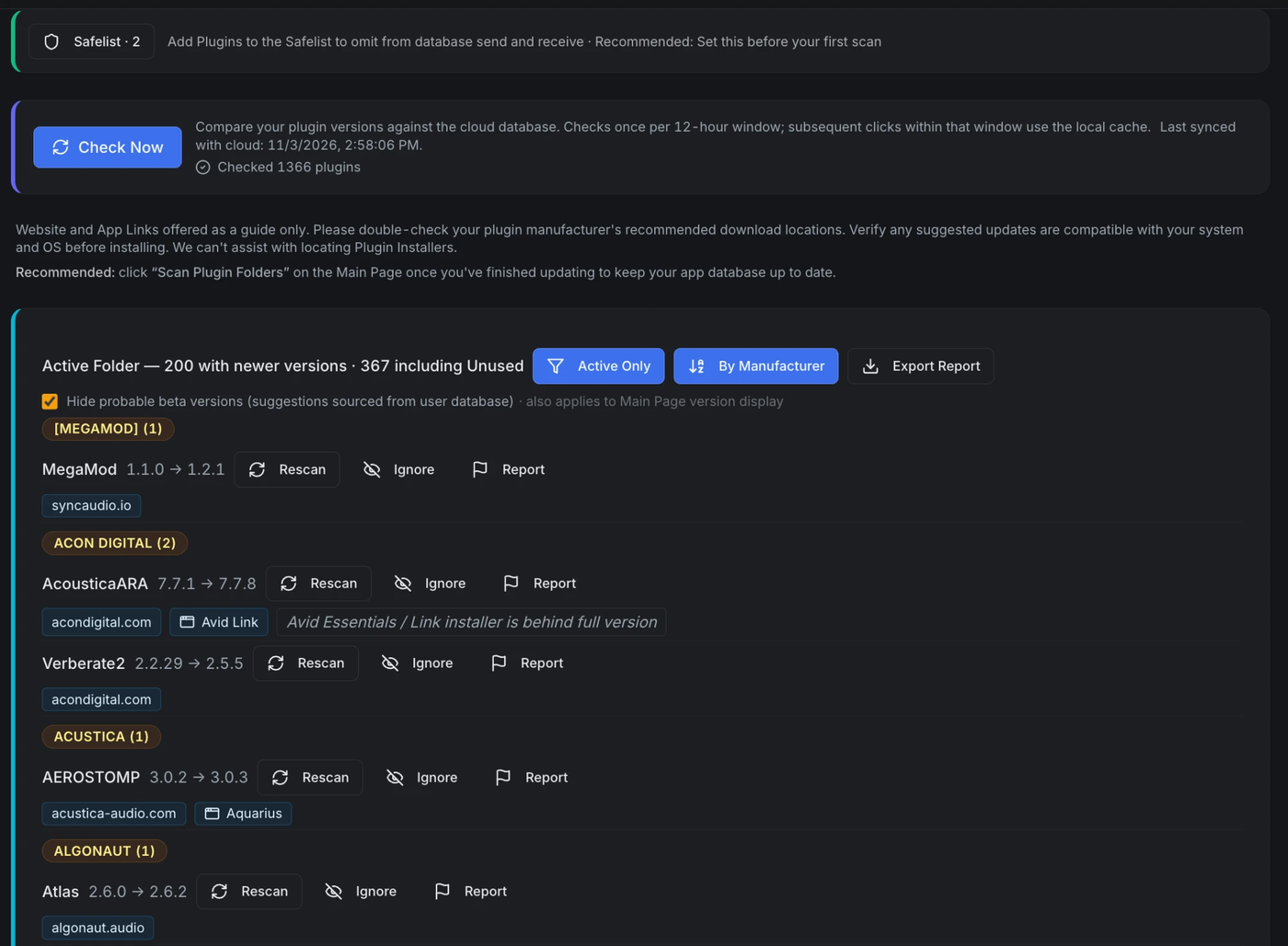
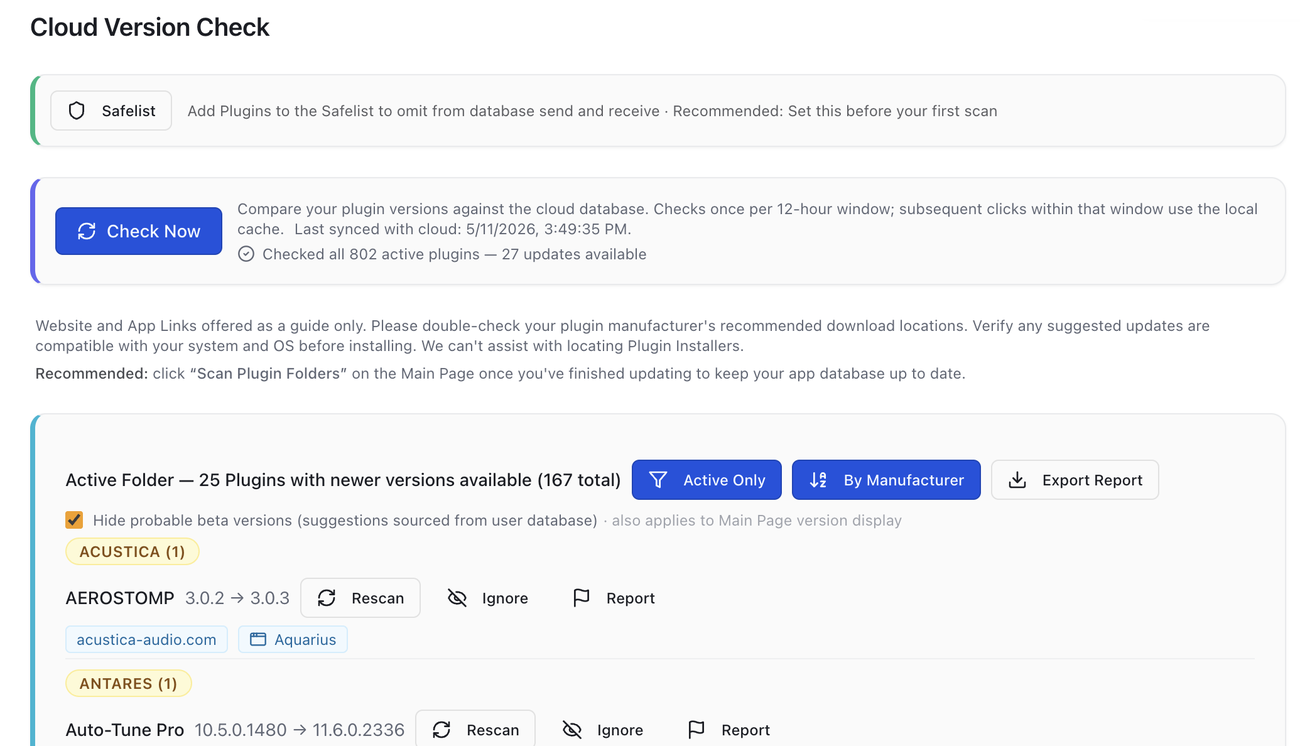
Check your AAX plugins for updates
AAX Plugin Manager compares the versions of your plugins with an updated database and lists the ones with newer versions. It suggests a link to the maker’s download page or user account, and can launch the maker’s own app if you have it installed (for example Softube Central, Avid Link and many others). A real studio timesaver!
Quickly reveal the outdated horrors of your plugin library! Also features:
- Beta filterHides suggested updates that are probably betas and not yet generally available.
- Export reportTake the report to another machine to fetch the installers, or hand it to an assistant. See exactly what’s out of date and where.
- SafelistKeep chosen plugins out of the check — if you’re a beta tester under a maker’s NDA, or there’s anything you’d rather not share.
Plugin management
View your entire AAX plugin library — see what’s in Active and Unused, and quickly move plugins, or your own Groups of plugins, between the two. Later versions of Pro Tools allow you to load new plugins whilst running — one click and your inactive plugin Group suddenly becomes available.
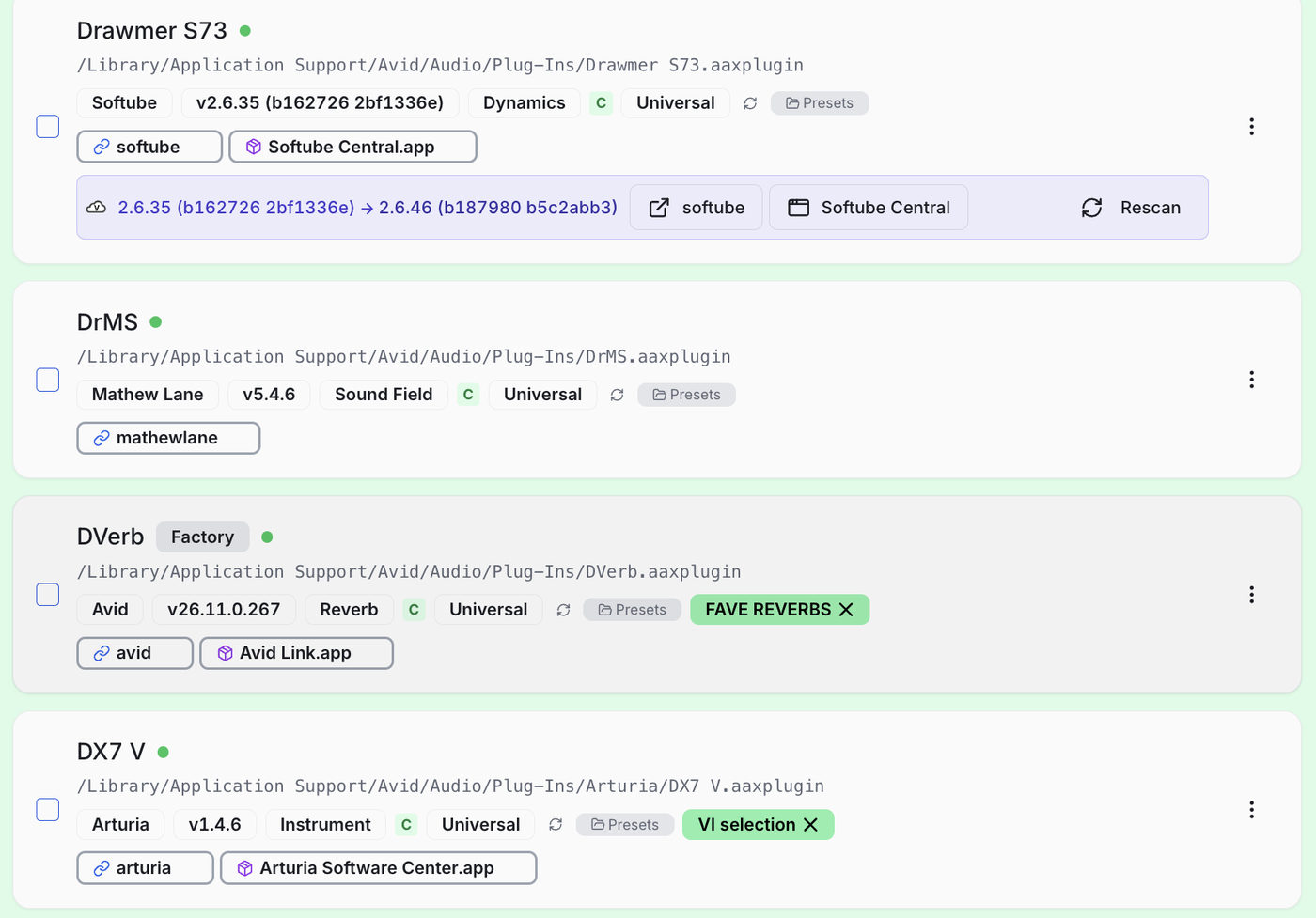
See all the data available for your plugins, the version you’re running and any updates found online.
Scan & tag
Scans your Active and Unused folders and lists every plugin with maker, version, category and architecture — plus your own tags and notes.
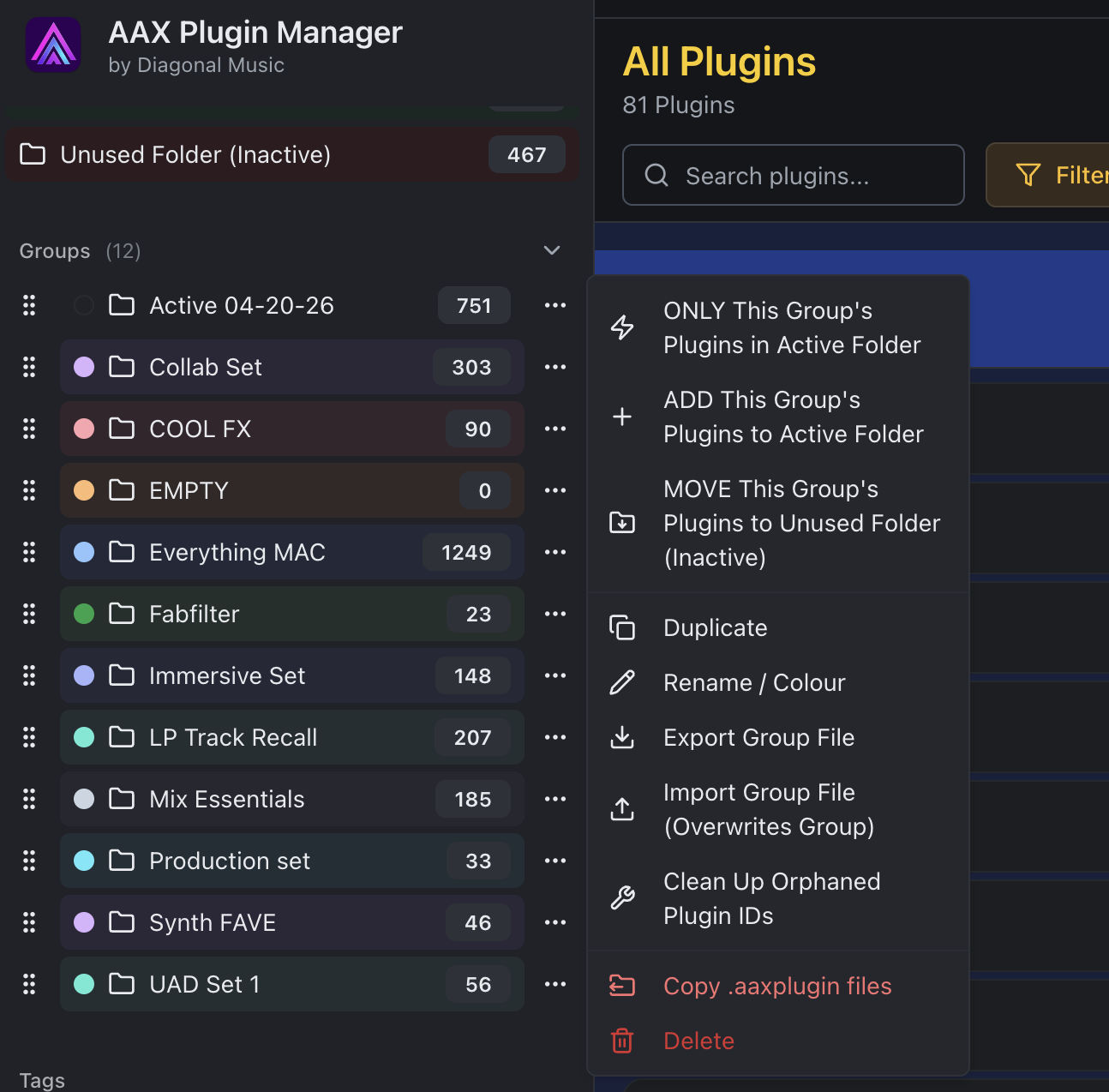
Make Groups
Lists of plugins for a job, a session or a collaborator’s rig. Export and import Groups to work with collaborators or across your machines.
Active and Unused
One click moves a Group’s plugins into the Active folder and everything else out to Unused — or adds them to what’s already there. Pro Tools loads what’s in Active.
Tags, search and filters
Use categories, manufacturers and your own tags to go through your entire collection, or only certain Groups or folders.
Session recall
Import a Pro Tools “Session Info as Text” export to build a Group of everything that session uses — including plugins not installed yet, which link up once they are.
Compare exports
Compare the exports from two machines to see how your plugin setups differ — a great help in making sure you’re running the same setup on every rig.
Notes and links
Add serials, logins and links to the maker’s website to your plugins. Your data stays local and private.
But why on earth do I need to make Groups?
A few real-world examples — one click and you can swap out your Active plugins, ready to go.
- SnapshotMake your whole Active folder into a Group, then duplicate it and thin the copy out. You can return to the whole original set whenever you need it, with one click.
- RecallRecalling something from years ago and getting the missing plugins dialogue in Pro Tools? Make a Group for the track and add the missing plugins from your Unused folder. When you’ve finished, move the Group back to Unused — nice and neat.
- Specialist toolsLots of Atmos or specialised mixing tools that you’re just not using in everyday work? A Group for these is easy to move in and out of the Active folder.
- CollaborationA Group of just the plugins your remote collaborator or mixer has installed, making sure you’re in the same plugin boat.
- Testing and reviewingTag and Group the plugins you’re trying out, then quickly remove them from the Active folder when you’re done.
- CreativeA Group just for dance music production, band mixing or writing, podcasts — or only the true favourites you need for your next tracking session. Share Group lists so you’re all on the same page.
“The first real breakthrough for me was AAX Plugin Manager.”RUSS HUGHES · PRODUCTION EXPERT · JANUARY 2026
Utilities
Tools for the problems AAX plugins tend to cause.
Permissions repair
Permission problems are the most common reason a plugin won’t move. The repair fixes the file permissions without changing the plugin itself.
Duplicate check
Stops accidental use of copies of plugins in the Active folder — a known cause of Pro Tools crashes — and badges older versions so you can clear them out.
Clear the Pro Tools cache
If Pro Tools shows outdated plugin information, or the category or version is wrong, clear its plugin cache and Pro Tools rebuilds it on the next launch.
UAD and Waves
Move all UAD plugins in or out in one click, or make a Group of just the ones you’re authorised for. Waves (v15+, experimental): move the whole Waves set out and back.
Buy
£18.99 November offer
Buy AAX Plugin Manager — £18.99One-time purchase, no subscription. Licensed for up to five of your own Macs (5 activations). macOS 12 Monterey or later. Universal: Apple silicon & Intel.